AFROPARI
Phone · Email · ID · Recovery

AfroPari Uganda Login Guide

Can't access your AfroPari account, or simply unsure which login option to use? This guide explains how to sign in with your Ugandan phone number, email or account ID, recover a forgotten password and handle an unexpected security check.

Not for persons under 25 years. This informational website never asks you to enter your account password or confirmation code. Any registration links are affiliate links.

Standard loginPhone, email or ID
Country prefixUganda · +256
Code deliveryEmail, SMS, call or Telegram
Minimum age25 years
01Account login

How to Log In to AfroPari Uganda

If you already have an account, you do not need to register again to access it. On the desktop website, look for Log in in the top-right corner. On mobile, the same option may appear in the header or account menu. The form opens with a choice of phone number or email/account ID.

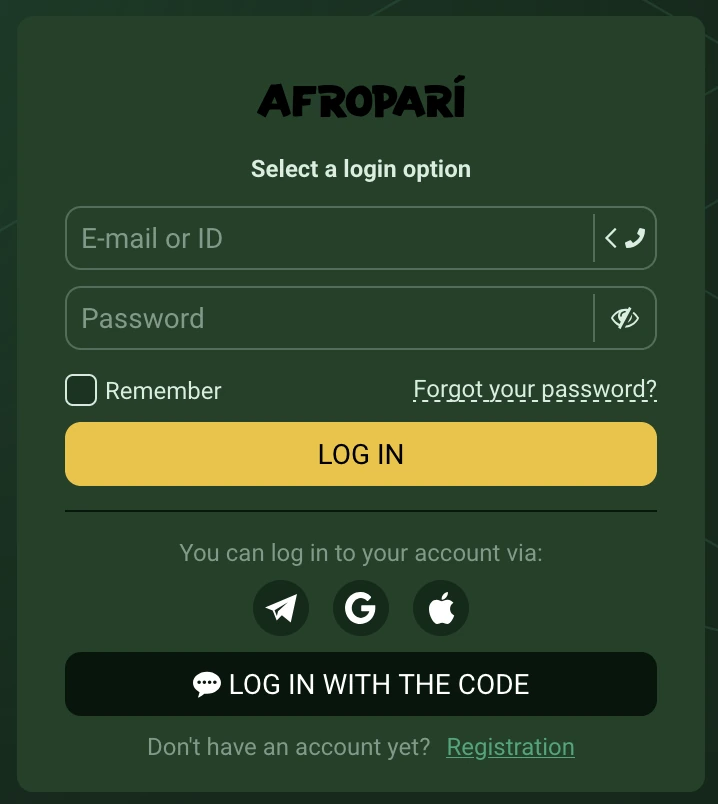
Compare the two Uganda login screens below. The small icon at the right of the identifier field switches between the two options. Both show the password field, Remember checkbox, recovery link and additional sign-in choices.
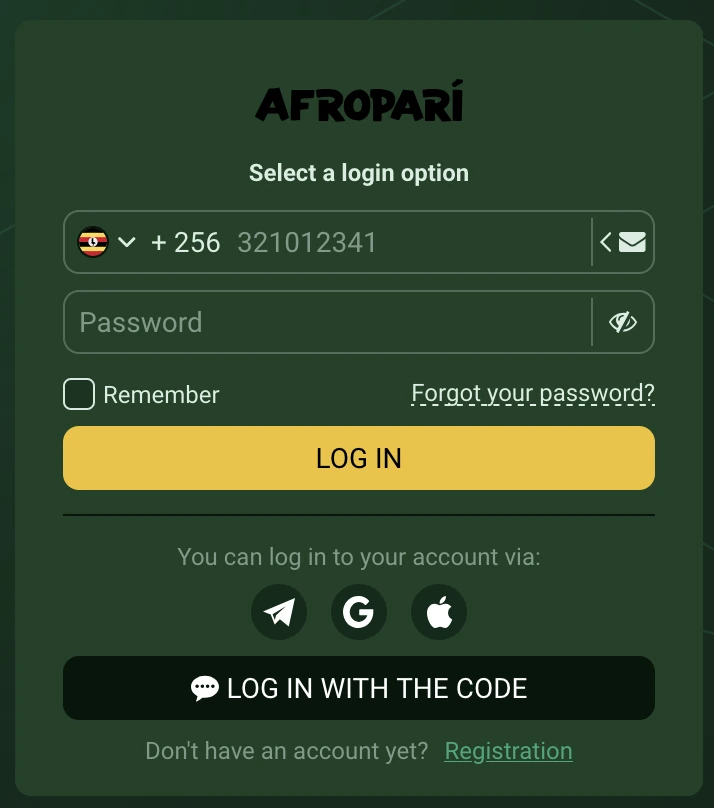
AfroPari Uganda phone login panel with +256, password, Remember and recovery link
Phone login with the Uganda +256 prefix.
AfroPari Uganda login panel with E-mail or ID, password and recovery options
Email address or account ID login.

Signing in with your phone number

This option is intended for the mobile number linked to your existing account. Select the Uganda flag if a different country appears. The +256 prefix is already supplied by the form, so follow the number format shown rather than duplicating the country code.

Open the login panel

Visit the operator website and select Log in. Check that you are on the intended website before entering personal details.

Select the phone identifier

Use the phone icon or the identifier switch until the Uganda flag and +256 prefix are displayed.

Enter the registered number and password

Use the same number and password connected to your profile. The visibility icon can help you check accidental typing errors in private.

Review Remember and submit

Leave Remember unchecked on shared devices. Select Log in and complete any ownership check that appears.

Signing in with an email address or account ID

If you registered using email or received an account ID, switch to the field labelled E-mail or ID. You can use the identifier connected to your profile, then enter the password. An account ID is not the same as the promo code BSR or a transaction reference.

Check for accidental spaces if you copied your email or ID. If you created your account with One-click, use the credentials issued at registration or the verified identifier you subsequently connected. Do not create an additional account if you have lost those credentials.

Code login and social sign-in

The login panel also displays Telegram, Google and Apple icons, as well as Log in with the code. Use an available sign-in option only if it is associated with your existing account. Code login requires access to an eligible contact channel; follow the prompts shown for your account and keep any confirmation code private.

Login optionWhat you need
PhoneRegistered phone number and password, or an offered code-based flow.
Email or IDRegistered email or account ID and password.
Social sign-inAccess to the linked Telegram, Google or Apple identity.
Log in with the codeAccess to the verified contact requested by the operator.
Do not open a duplicate accountIf the identifier is no longer accessible, use the recovery procedure or contact operator support. This guide is not an account login portal.
AfroPari Uganda welcome offer artwork, ages 25 and above
02Ownership check

Logging In from a New Device, Location or IP Address

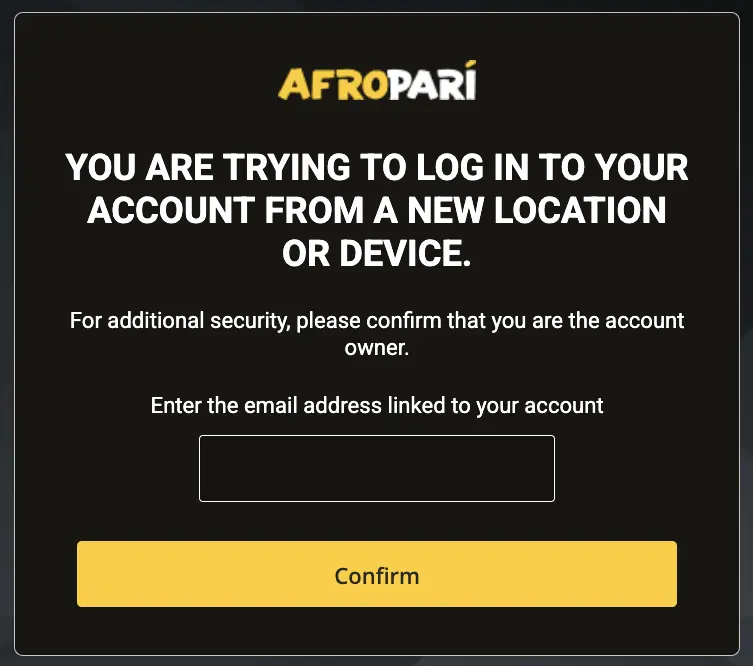
Sometimes your usual password is accepted but another screen appears asking you to confirm your identity. This can happen when you sign in from a different device or location. It is an ownership check, not necessarily a password error.

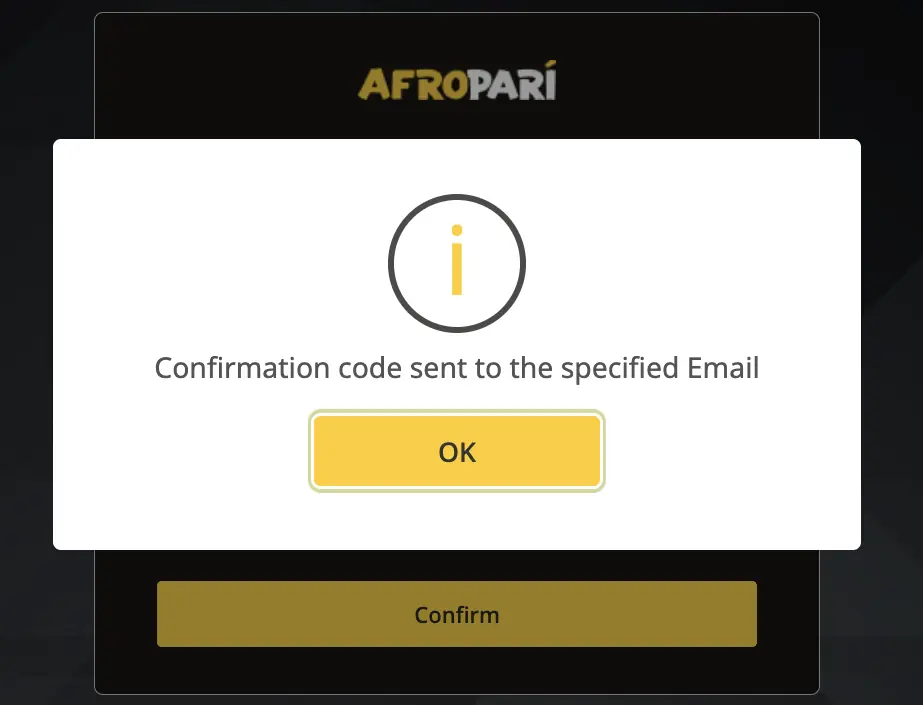
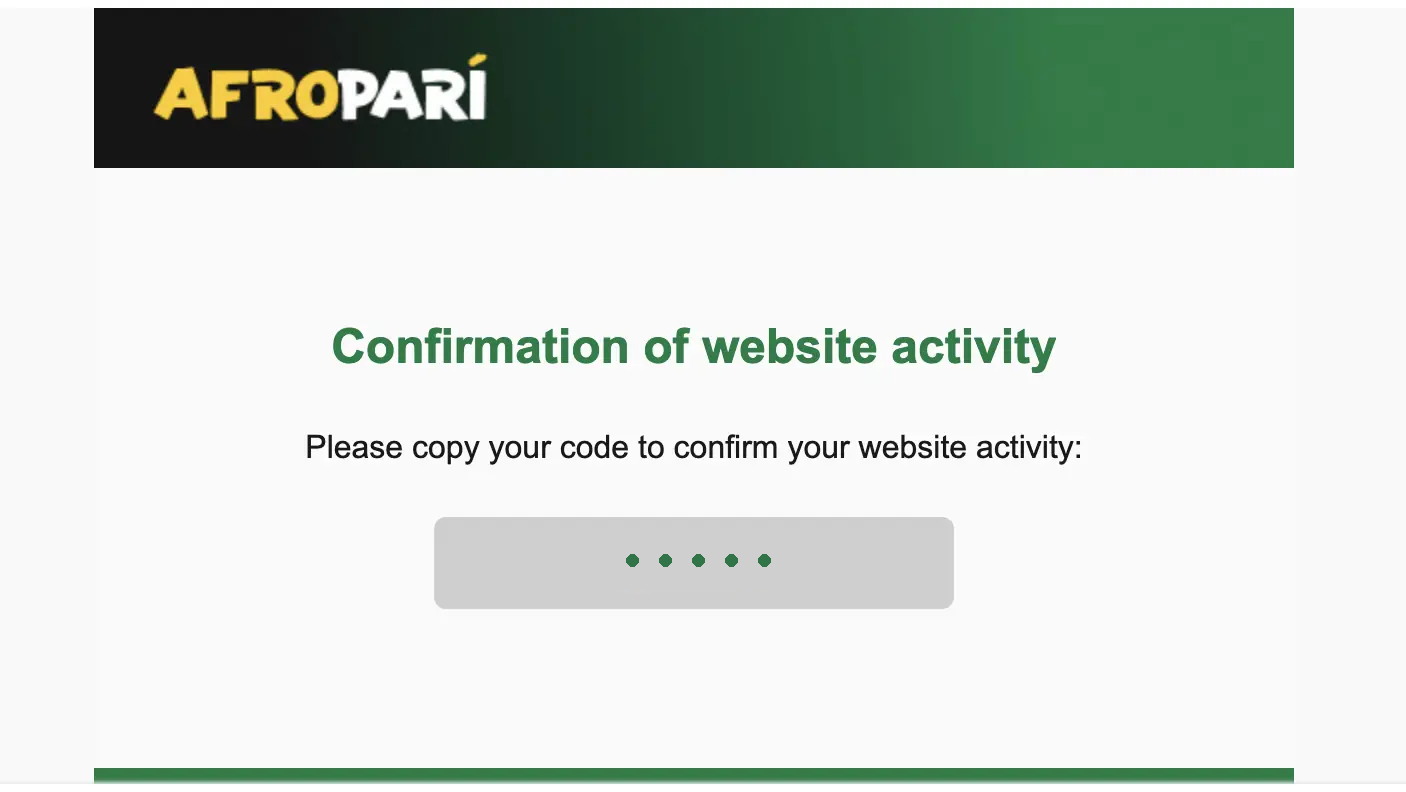
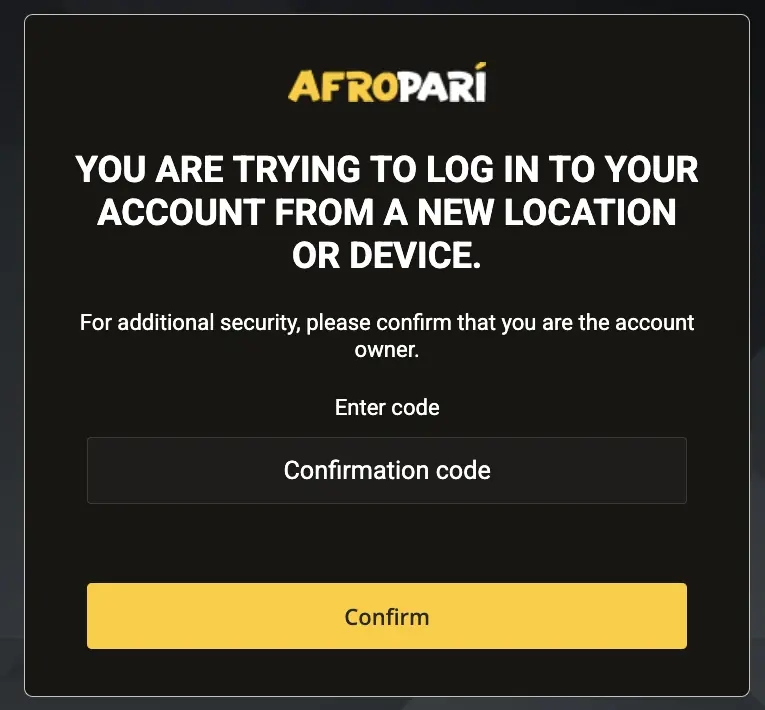
The reference screens below show an email-based check in four stages. They come from the shared interface used for our earlier guides; sensitive information has been concealed. Your current Uganda screen may have a different colour theme or request a different verified contact.

New-device or location check requesting the linked email address
1. Confirm the contact linked to the account.
Notice confirming a confirmation code was sent to an email
2. Check the confirmation notice.
Anonymized email containing a masked website activity confirmation code
3. Retrieve the code from the corresponding account message.
New-device confirmation dialog with a code entry field
4. Return to the original dialog to confirm.
Confirm your verified contact

Enter the address or number the security screen requests. It should match your existing profile.

Retrieve the confirmation code

Check your inbox or the offered delivery channel. If the message does not arrive, check the address or number before requesting a replacement.

Return to the original login window

Enter the newest code in the screen that initiated the request. Do not send the code in a chat, email or social message.

Review the account

Once you regain access, review your profile and recent account activity if the request was unexpected.

Did not initiate the login?Do not approve the request. Use a trusted device to secure the account and contact security@afropari.com or operator support.

If you cannot even get past the password field, the recovery process in the next chapter is more appropriate.

AfroPari football promotional artwork
03Recovery

Forgot Your AfroPari Password?

You can begin password recovery without creating a new profile. Look underneath the password field in either login form for Forgot your password? and open the recovery dialog.

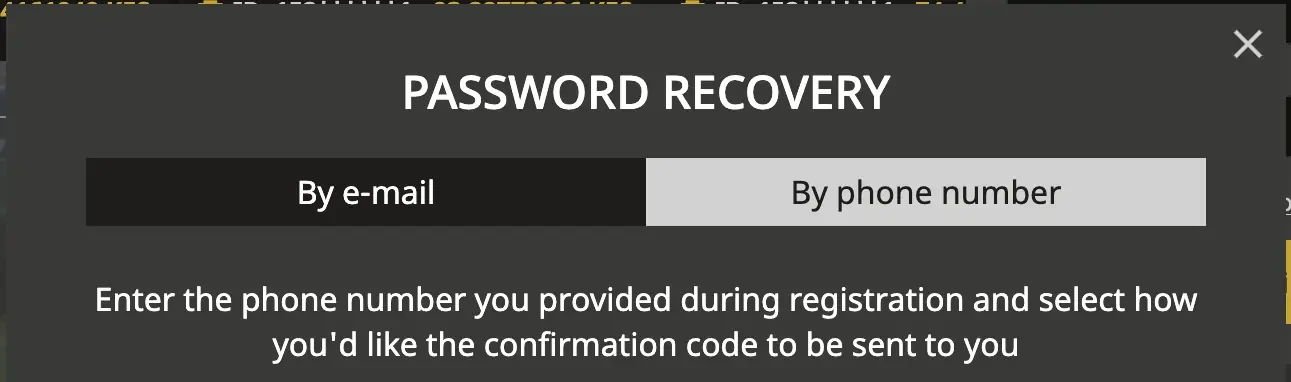
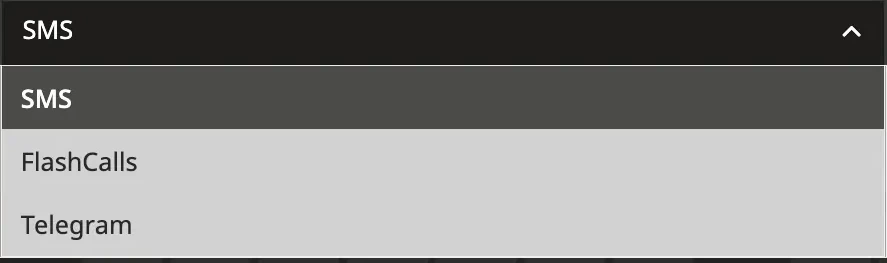
The shared-interface reference below shows the email and phone recovery tabs. The phone method may offer several code-delivery channels, as illustrated by the separate cropped menu. These are reference images; the operator may change the layout or available methods.

Password recovery reference dialog with By e-mail and By phone number tabs
Choose the contact type you already have linked.
Password recovery channel menu showing SMS, FlashCalls and Telegram
Example of available delivery choices.

How to recover using your registered email

Select By e-mail

Use the recovery dialog rather than repeatedly guessing your password.

Enter your linked email

Make sure it is the email you used for this account and that you can open its inbox.

Follow the operator’s message

Check for a recovery link or confirmation instruction. Use only the message corresponding to your own request.

Choose and confirm your new password

Complete the prompt in the operator’s interface, then sign in again.

How to recover using your Ugandan mobile number

If your phone number is the verified contact, select By phone number, choose Uganda (+256) and supply the registered number in the format requested. Select an available delivery method and wait for the code or call instruction.

Enter the current code in the recovery screen, then follow the instructions to choose a new password. If your SIM was lost, replaced or disconnected and you cannot receive verification, contact support rather than using another person’s number. The operator may request account ownership evidence.

AfroPari Uganda welcome offer artwork, ages 25 and above
04Code delivery

Email, SMS, FlashCalls and Telegram Codes

Confirmation codes are a way to establish that you control a contact associated with your account. The exact methods offered depend on your account and the screen you are using. The recovery choices shown earlier include SMS, FlashCalls and Telegram; email is also supported.

Use the table to understand the difference between the channels and what to check if a message does not arrive.

ChannelWhat happensWhat to check
EmailRecovery or confirmation instructions are sent to your verified address.Correct address, spam folder and whether the message matches your request.
SMSA code may be delivered to your registered mobile number.Network coverage, active SIM and correct +256 format.
FlashCallsThe service uses an incoming call to support phone verification.Keep your registered SIM available; follow the exact on-screen instructions.
TelegramA code can be delivered through Telegram when the linked number is eligible.Access to the correct Telegram account and current verification message.

What Telegram confirmation looks like

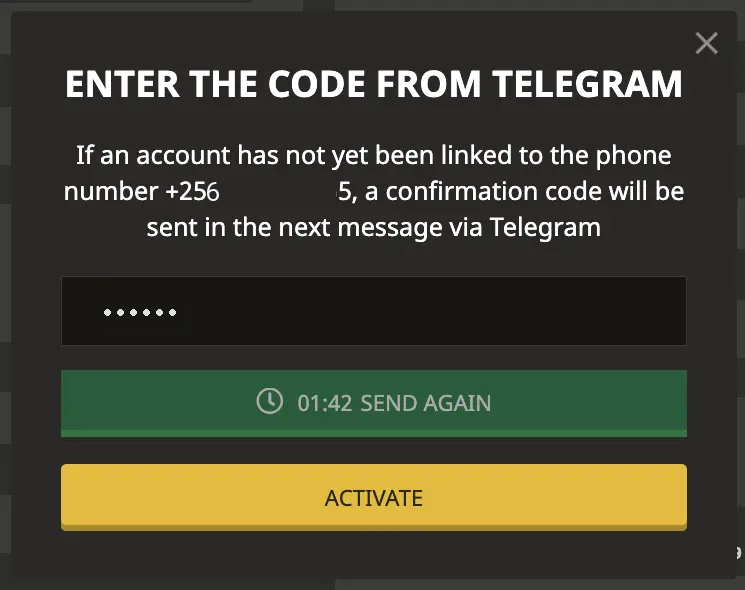
In the shared-interface example, a Telegram notification contains a code and the confirmation screen provides an entry box, resend timer and Activate button. The code and phone details in these images have been concealed.

Telegram verification notification with code concealed
Example Telegram verification message.
Reference Telegram code entry screen showing masked number, resend timer and Activate
Enter the code in the operator dialog, not in a message to support.

Wait until the displayed timer allows another request. Requesting a replacement may invalidate an earlier code, so use the latest one. If you receive a code unexpectedly, treat it as a possible security warning and do not approve the login.

AfroPari football promotional artwork
05New password

Choose a Strong New Password

Once you pass the recovery check, the next step is to choose a password that you have not used elsewhere. Reusing your email or mobile-money password makes it easier for a single account breach to affect other services.

Use a long, unique password

A password manager can generate and store a unique password; follow the length and character rules displayed by the operator.

Avoid easily guessed details

Do not include your name, phone number, date of birth or account ID.

Confirm the password carefully

Enter the same value in both fields if the reset form requests confirmation. Verify typing only in a private setting.

Keep it private

Never store a password in a public screenshot, send it to a third party or share it with customer support.

After the reset, sign in using the new password. If you suspect someone else accessed your account, change the password of the linked email as well, review the account activity and enable any additional security controls available.

AfroPari Uganda welcome offer artwork, ages 25 and above
06Account protection

Secure Your AfroPari Account

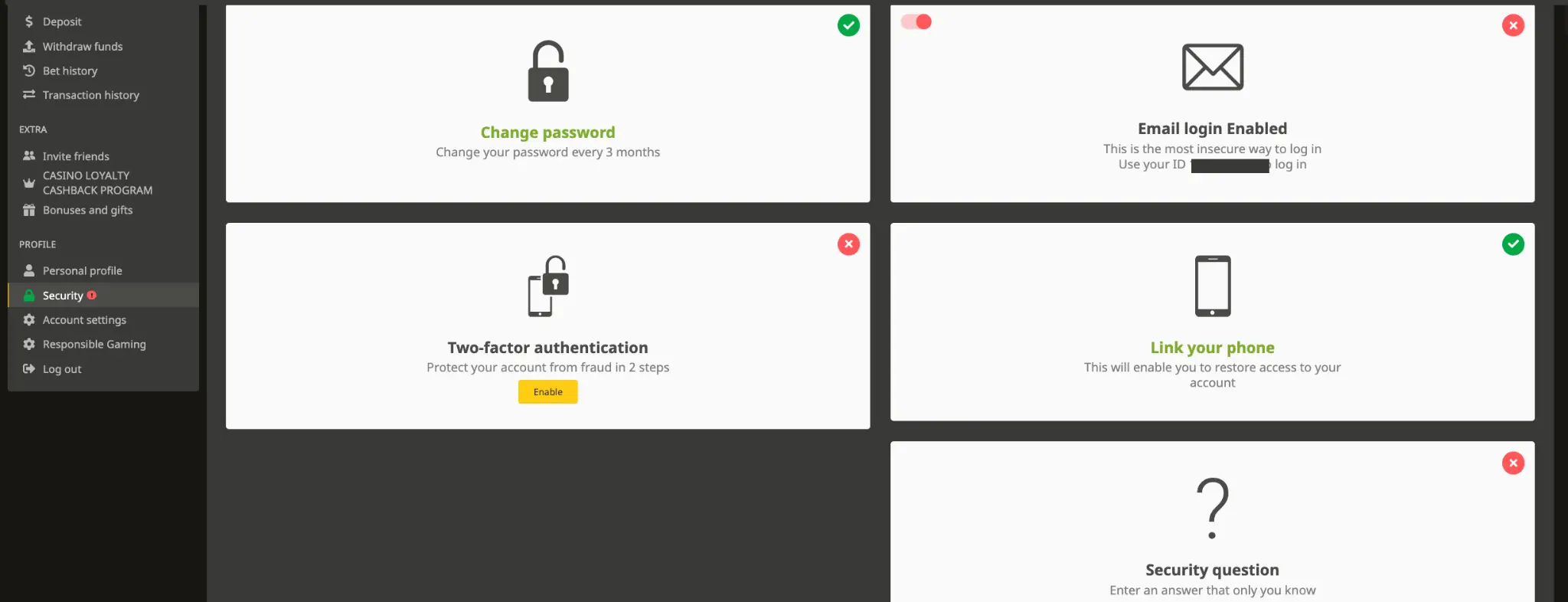
Once you are able to access your account, visit the Security area in your profile. The reference screen below illustrates the password, email login, linked phone, two-factor authentication and security-question options.

AfroPari account security reference showing change password, email login, two-factor authentication, linked phone and security question
Shared-interface security reference; the account ID is concealed.

Each control has a different purpose. Use the profile settings to review which options are active rather than assuming all are enabled automatically.

Security settingWhy it matters
Two-factor authenticationAdds a separate confirmation step where available. Keep recovery information secure.
Link your phoneGives the platform a verified number for access recovery.
Email login / account IDReview which identifier is enabled and retain your ID securely.
Security questionChoose an answer that is not easily guessed or public.
Change passwordUse a unique password and change it promptly if you suspect exposure. The reference screen also recommends periodic changes.

Protect your account when using another device

Do not save a password or enable Remember on a shared computer. Log out when finished and avoid opening account links in unexpected messages. A login code is sensitive even if someone claims to be an employee of the operator.

Identity verification (KYC) is separate from these access controls. A linked phone or email does not necessarily mean that document verification has been completed. If requested, follow the operator’s verified submission route, not the contact form on this guide.

AfroPari football promotional artwork
07Troubleshooting

Common AfroPari Login Problems

If you still cannot log in, first identify whether the problem concerns the identifier, password, verification code or the device itself. The checks below can help you narrow down the issue without repeatedly submitting incorrect credentials.

ProblemWhat to checkNext action
Password rejectedCheck the selected login option, typing and accidental spaces.Use the recovery link instead of repeated guesses.
Phone not recognisedConfirm Uganda +256 and the registered number.Use a linked email or ID if available.
New-device promptCheck whether you initiated the request.Complete the legitimate check or secure the account.
Email code missingCheck spam and the entered address.Wait for the resend option before requesting another code.
SMS, call or Telegram code missingCheck signal, active SIM and access to the linked channel.Use another offered method or contact support.
Lost contact accessCheck whether another verified identifier is available.Ask the operator for ownership recovery; avoid a second account.
Social sign-in failsCheck the correct linked Google, Apple or Telegram identity.Use a different verified method if available.
App opens but login failsCheck internet access and whether the same login works on the operator website.Use trusted app updates or ask support.
Suspicious activityReview unexpected confirmations, profile changes and transactions.Secure your account and contact the security team.

When to contact customer support

If the problem persists, email the operator at support-en@afropari.com or use its live chat. Explain what screen you reached, the time of the problem and the error shown. Provide account identifiers only via the verified operator channel, and conceal any passwords, codes or payment details in screenshots.

For suspected unauthorized access, the operator lists security@afropari.com. Our editorial address, contact@afropari.ug, is for questions or corrections about this website; it cannot unlock an account.

AfroPari Uganda welcome offer artwork, ages 25 and above
08Questions

AfroPari Uganda Login FAQ

Here are answers to common questions about logging in, recovering access and keeping your account secure.

How do I log in to AfroPari Uganda?

Open the operator’s login panel, select the registered phone number or E-mail or ID option, enter your password and complete any ownership check. Uganda’s phone prefix is +256.

Can I log in using my account ID?

Yes. The login field labelled E-mail or ID accepts an account ID or linked email. BSR is a registration promo code, not an account ID.

Can I use Telegram, Google or Apple to sign in?

The Uganda login form displays all three icons. Use the identity linked to your existing account and follow the available operator prompts.

Why does AfroPari request a confirmation code?

A new device or location can trigger an ownership check. Approve it only if you initiated the login and enter the code in the original dialog.

How can I reset a forgotten password?

Select Forgot your password in the login panel and choose the email or phone method connected to your account. Follow the recovery instructions and set a new password.

Which phone recovery delivery methods are available?

The shared-interface reference shows SMS, FlashCalls and Telegram. Availability depends on the account and the current recovery options displayed.

Why did my code stop working?

It may have expired or been replaced after a new request. Follow the timer and use the latest code matching your current request.

What if I lost access to both my email and phone?

Contact the operator through verified support channels for its account-ownership recovery procedure. Do not create another account to bypass recovery.

Should I select Remember?

Only consider Remember on a private, locked device that you control. Leave it off on shared or public devices.

Can I give a verification code to customer support?

No. Enter access and recovery codes only in the genuine operator screen you opened. Do not disclose them to another person.

Can AfroPari.ug reset my account password?

No. This guide is a separate informational resource. Account recovery must be handled by the operator.

What is the minimum gambling age in Uganda?

You must be 25 years or older to participate in gambling in Uganda.

AfroPari football promotional artwork